1
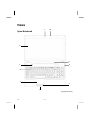
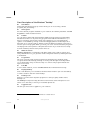
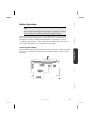
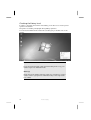
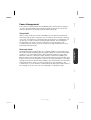
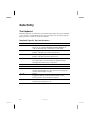
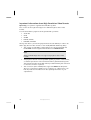
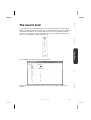
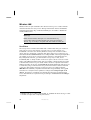
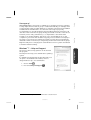
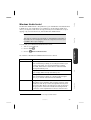
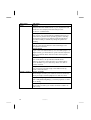
Short Description of the Windows® Desktop* Start Button Clicking the Start button brings up a menu where you can access help, software programs, files, and settings All Programs All of the software programs installed on your notebook are ordinarily listed here. Click All Programs to reveal an extensive menu. Taskbar You can start programs and switch between already active programs using the taskbar beneath the screen. You can place every program in the taskbar under Windows® 7, so that you can always open it with a single click. Furthermore, you can rearrange the symbols on the taskbar by clicking on them and dragging them to the desired position. Move the cursor over the symbols, and the system will display a miniature of every file or window open in the program. When you move your cursor over the miniature, the system will display a full-screen preview of the particular window. If you move the cursor away from the miniature, the full-screen preview will close. Windows Search Windows Search helps you find almost all data located on the notebook, quickly and easily. With Windows® 7, you get search results with greater relevance, and they are easier to understand. Program Bar The most commonly used software programs are listed here. The operating system recognises all this automatically. Clicking on an entry with the right mouse key enables you to decide which entry on the list to keep or to remove. The program linked to the input is not erased. Turn Off To turn off the notebook, click on the Shut down button with the left mouse key. Display Desktop Click on this Button if you would like to minimise all the windows open onto the taskbar, in order to obtain a clear view of the Desktop. Desktop Icons Desktop icons link to their respective programs. To start a program, double-click its desktop icon. The desktop encompasses nearly the entire screen and acts as the shelf space for such entries or for other links, to which you would like rapid access. Logged in User This tells you which user is logged in to your notebook. * Function is limited way in the case of the Windows® 7 Starter version 22 Getting Started