1
LINE
the character defined by the F6 option. Usually F6 holds a CR character. This
allows the receiver to answer with a CR after each line of data.
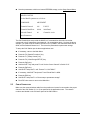
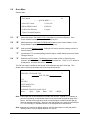
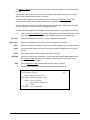
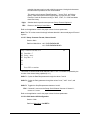
The Shift F4 command on the "Setup: CNC Station Options" menu selects the serial data port
number 0 or 1. This options menu appears from the top menu with the F6, Fl, F6, and PAGE DN
keys. Additional PAGE DN keys find menus that setup serial port characteristics like baud rate,
parity, and number of stop and data bits. Be sure that the characteristics of the selected serial
port match the device you wish to communicate with. A shifted F4 from this menu or the "Special
Functions Menu" jumps into the terminal mode. The letter "T" on the QUICKMENU screen also
leads to the terminal program. If a file and start character were setup, then data capture begins
with the receipt of 10 bytes of the start character. Another shift F4 exits the terminal emulation
mode and temporarily stops an outstanding file capture.
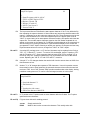
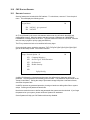
Error Messages
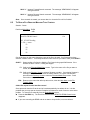
"TTY Character Queues Overflowed"
"TTY Disk Buffer Overflowed"
These messages indicate that data reaches the CNC Station faster than the TTY emulation
system can process it.
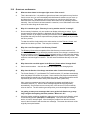
Any of several steps can be taken to avoid these failures:
1. Enable the XOFF.XON protocol on the sending device. The TTY emulation package may
attempt to use this to prevent overflow conditions.
2. Reduce the number of concurrent processes running on the CNC Station.
3. Turn off options like the F6 clear the screen function and the F7 tabbing function. These
functions take time for the CNC Station to process.
4. Insert a new diskette into the CNC Station and reformat it. Capture your data on this new
diskette. Old worn diskettes may take more time to process.
5. Reduce the baud rate on both the CNC Station and the host computer.
10.4
ADJUST THE SCREEN (LCD) DISPLAY
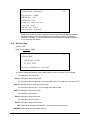
Start the Main Menu or Quick Menu
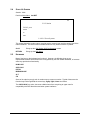
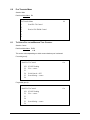
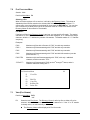
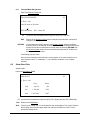
Press F6 to get to the Special Functions Menu.
Press F6 repeatedly to adjust the LCD (the screen). Stop when you like what you see.
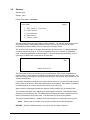
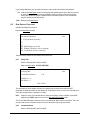
Press F1 to go to the Setup Control Menu.
Press Shift F1 to save the new settings to the internal permanent storage.
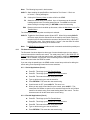
If nothing (or very little) appears on the Screen When you turn it on, try this:
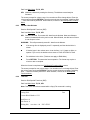
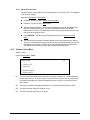
Turn on the CNC Station
Press Ctrl-DEL, then press F6 several times. Watch the screen as you repeatedly, and
slowly, press F6. If you don’t see anything on the screen after 20 presses or so, turn the
power off, wait several seconds, and turn it back on again. Then start pressing F6 again. If it
still doesn’t work after doing this several times, contact the Customer Service Department at
Greco Systems for assistance.
CNC Station ™ User Manual
43