1
USING SERVICES
USING THE FTP SERVER
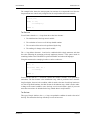
If you have a Windows- or Unix-based time server as part of your network infrastructure, you
should ultimately synchronize to this source to ensure enterprise-wide synchronization. If you
have several Crimson devices on the same network, though, you will find it better to
nominate one of these as the master device for the purpose of setting Daylight Savings Time,
and then have that device alone synchronize to the enterprise time source. You can then
configure the other devices to synchronize to the master device, and enable the Linked DST
facility to propagate the Daylight Savings Time setting around your factory.
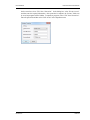
If you have no enterprise time source available, you may choose to nominate a single
Crimson device as the point where an operator will set the time, and then have other devices
synchronize to that source. Alternatively, if your installation provides TCP/IP access to the
Internet via either Ethernet or a modem connection, you may configure the SNTP client to
synchronize to a public time server. An example of this would be 192.6.15.28, which is the
current IP address of a public time server provided by NIST.
A list of other servers can be found at…
http://support.microsoft.com/kb/262680
Note that since Crimson uses an IP address and not a host name to reference the SNTP server,
it will lose connection with any server that is relocated to a new network address. While such
relocations are very rare, they are beyond your control and that of Red Lion. The use of an
enterprise time source which accesses its own source via DNS is thus considered preferable!
TIME-ZONE CONFIGURATION
As mentioned above, a Crimson device must have knowledge of the current time-zone if it is
to use advanced time management. This information can be provided in two ways. The
easiest method is to use the Send Time command on the Link menu of the Crimson
configuration software. In addition to setting the clock, this command also sends the PC’s
current time zone and the status of Daylight Savings Time. Crimson will store this data in
non-volatile memory, and use it from that point forward. Obviously, you should be sure that
the PC contains valid time and date information before sending it to the unit!
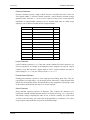
The alternative method is to use the system variables TimeZone and UseDST. The former
holds the number of hours by which the local time zone differs from UTC, and may be either
negative or positive. For example, a setting of –5 corresponds to Eastern Standard Time in the
United States. The latter contains either 0 or 1, depending on whether Daylight Savings Time
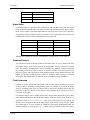
is active. Editing either of these variables via the user interface will result in the unit’s clock
changing to take account of the new settings. For example, enabling Daylight Savings Time
will move the clock forward one hour, while disabling it will move it back. A typical database
will only need to expose UseDST for editing by the user, and even this may not be necessary if
the Linked DST facility described above is in use.
USING THE FTP SERVER
Crimson’s FTP server provides a method to exchange files between a Crimson device and a
remote computer running an FTP client application. The Crimson device will act as a server,
waiting for client applications to connect and download or upload files.
REVISION 2.6
PAGE 189