1
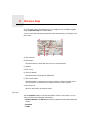
How can I set warnings for POIs?
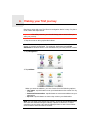
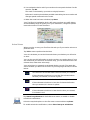
1. Tap the screen to bring up the main menu.
2. Tap Change preferences.
3. Tap Manage POIs.
Note: The Manage POIs button is only available when all menu buttons are
shown. To show all menu buttons, tap Show ALL menu options in the
Preferences menu.
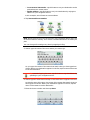
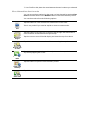
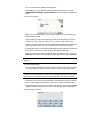
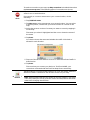
4. Tap Warn when near POI.
Tap this button to receive a warning when you travel near to the location
of a POI.
Warn when
near POI
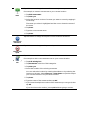
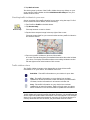
5. Select the category of POI you want to be warned about.
Select the category from the list or start to type the name of the category
and select it when it is shown in the list.
6. Set how close the POI should be when you receive a warning.
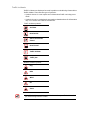
7. Choose the warning sound for the category of POI you selected.
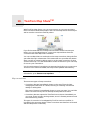
Managing POIs
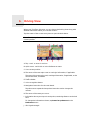
Tap Manage POIs from the Preferences menu.
Manage POIs
Note: The Manage POIs button is only available when all menu buttons are
shown. To show all menu buttons, tap Show ALL menu options in the
Preferences menu.
You can, for example, do the following:
• Create your own POI categories and add POIs to them.
• Set warnings when you get close to POIs.
Why would I want to create my own POIs?
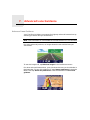
A POI acts like a shortcut - once you have saved a location as a POI you never
have to type the address of that POI again. But when you create a POI you can
save more than just the location.
• Phone number - when you create a POI, you can save a phone number with
it.
• Categories - when you create a POI you have to put it in a category.
For example, you could create a category of POIs called ‘Favorite restaurants’.
With each POI, save the phone number so that you can call them from your
GO to reserve a table.