1
5
WebCenter
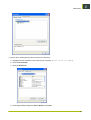
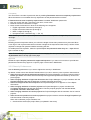
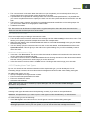
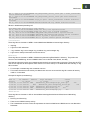
3. Save and upload your custom XML file.
4. Assign the menu to the users (or company) you created it for.
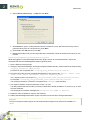
5. Add a language string to the language files (see Add Custom Menu Items and Customize the Language
Files).
6. Restart TomCat.
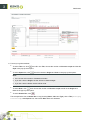
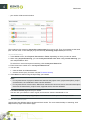
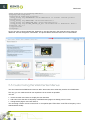
7. Log in to WebCenter as one of the users to which you gave the “New Request” menu, and check
whether:
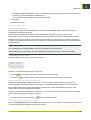
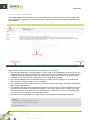
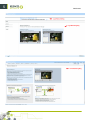
• you see the "New Request" menu,
• clicking the menu opens the project creation page, with the "New Box" template selected.
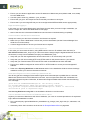
Note: If this does not work, check all previous steps for spelling mistakes.
• If you don't get the new menu item, you have added the information incorrectly to the XML file.
• If you get an empty menu item (no text), your XML file is correct but your language file is not.
• If all is scrambled, you have broken the XML. Go back to a previous version.
Create a Project from Different Templates
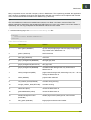
If your users need to create several types of projects (requests), you can add a button that will bring them to
the project creation page, with a selection of templates to choose from.
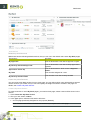
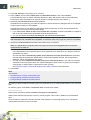
1. Remove all menu items the requesters won't need.
2. Mark the templates they will need to choose from using a characteristic:
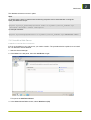
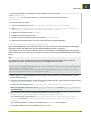
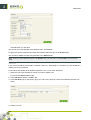
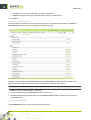
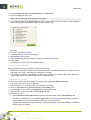
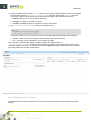
a. Log in to WebCenter as an Admin and go to Admin > Characteristics.
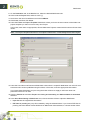
b. On the Characteristics page, make sure ROOT is selected and click New Characteristic. Create a
characteristic called "Request".
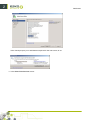
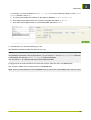
c. Go to one of the template the requesters will use (for example "New Box") and add the "Request"
characteristic to it.
d. Repeat for all templates the requesters will use.
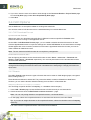
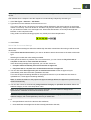
3. Add a “New Request” menu item, that links to the project creation page, and calls the "Request"
template characteristic.
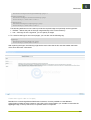
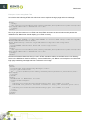
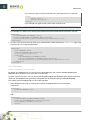
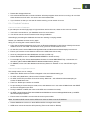
<menuitem>
<name>NEW_REQUEST</name>
<labeltag>NEW_REQUEST_TAG</labeltag>
<url>projmgmntnewproject.jsp?templatecharacteristicpath=\\Request</url>
<scope>
<project_managers/>
</scope>
</menuitem>
Note: Make sure you enter your template name precisely (the <url> is case sensitive).
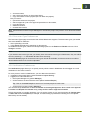
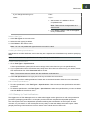
4. Save and upload your custom XML file.
5. Assign the menu to the users (or company) you created it for.
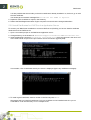
6. Add a language string to the language files (see Add Custom Menu Items and Customize the Language
Files).
7. Restart TomCat.
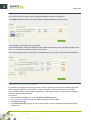
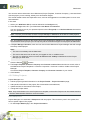
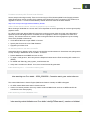
8. Log in to WebCenter as one of the users to which you gave the “New Request” menu, and check
whether:
238