1
Set up Inventory Subcategories
1.
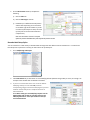
Go to Edit Sub Categories to assign different label defaults to your inventory subcategories.
2.
Select a category/subcategory
from the grid (#2 on image).
3.
Select the barcode default you use
when printing barcode labels/tags
in the Barcode box (see #3 on
image).
Hint: If you are assigning the
same label default to all
subcategories in a category, save
time by right-clicking in the
Barcode box (after you’ve
selected and saved a default) and
click Copy to all subcategories with matching categories.
**Note: In order for labels to print for items, their subcategory must have a barcode default
assigned.
Printing Barcodes
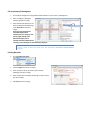
1.
Go to Print Barcode Labels.
2.
Click the Single tab (see #2 on image).
3.
Enter the SKU for which you want to print barcode
labels/tags (see #3 on image).
4.
Enter the quantity of barcodes labels/tags you want to print
(see #4 on image).
5.
Click Print (see #5 on image).