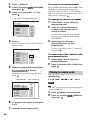
1
3
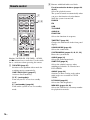
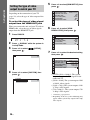
Press X/x to select the item to be
shuffled.
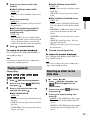
x VIDEO CD/Super Audio CD/CD
• [OFF]: Off.
• [TRACK]: You can shuffle tracks on the
disc.
• [OFF]: Off.
• [DISC]: You can repeat all of the tracks
on the disc.
• [TRACK]: You can repeat the current
track.
x During Program Play
x DATA CD/DATA DVD/USB device
x VIDEO CD/Super Audio CD/CD
x DATA CD (audio files only)/DATA
DVD (audio files only)/USB device
(audio files only)
• [OFF]: Off.
• [ON (MUSIC)]: You can shuffle audio
files in the folder on the current disc/USB
device. When no folder is selected, the
audio files in the first folder are shuffled.
4
Press
to start Shuffle Play.
To return to normal playback
4
Press CLEAR while holding down SHIFT, or
select [OFF] in Step 3.
To return to normal playback
Note
• You cannot use Shuffle Play with a VIDEO CD or
Super VCD with PBC playback.
Playback
• [OFF]: Off.
• [DISC] (DATA CD/DATA DVD only):
You can repeat all of the folders on the
disc.
• [MEMORY] (USB device only): You can
repeat all of the folders on the USB
device.
• [FOLDER]: You can repeat the current
folder.
• [TRACK] (audio files only): You can
repeat the current file.
• [FILE] (video files only): You can repeat
the current file.
• [OFF]: Off.
• [ON]: You can shuffle tracks selected in
Program Play.
Press N to start Repeat Play.
Press CLEAR while holding down SHIFT, or
select [OFF] in Step 3.
Note
• You cannot use Repeat Play with a VIDEO CD or
Super VCD with PBC playback.
Playing repeatedly
Selecting an effect for the
slide show
(Repeat Play)
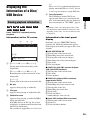
1
2
3
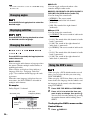
Press
DISPLAY during playback.
Press X/x to select
then press
.
1
[REPEAT],
Press X/x to select the item to be
repeated, then press
.
2
x DVD VIDEO/DVD-VR
3
• [OFF]: Off.
• [DISC]: You can repeat all of the titles on
the disc.
• [TITLE]: You can repeat the current title
on a disc.
• [CHAPTER]: You can repeat the current
chapter on a disc.
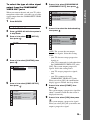
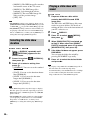
Press
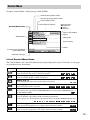
DISPLAY repeatedly until
[EFFECT] appears on the
control menu.
Press X/x to select
then press
.
[EFFECT],
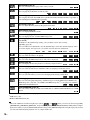
Press X/x to select a setting, then
press
.
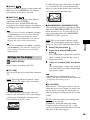
• [MODE 1]: The JPEG image file sweeps
in from the top to the bottom of the TV
screen.
• [MODE 2]: The JPEG image file stretches
out from the left to the right of the TV
screen.
37US