1
Installation
Device Installation
The DSL-526E has three separate physical interfaces, an ADSL (WAN), an Ethernet (LAN) interface and a USB Interface. The Router can be
connected to your PC via the USB port or the Ethernet port. Place the Router in a location where it can be connected to the various devices as well
as to a power source. The Router should not be located where it will be exposed to moisture or excessive heat. Make sure the cables and power
cord are placed safely out of the way so they do not create a tripping hazard. As with any electrical appliance, observe common sense safety
procedures.
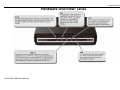
The Router can be placed on a shelf or desktop, ideally you should be able to see the LED indicators on the front if you need to view them for
troubleshooting.
Power on Router
The Router must be used with the power adapter included with the device.
1.
2.
3.
Insert the AC Power Adapter cord into the power receptacle located on the rear panel of the Router and plug the adapter into a suitable nearby
power source.
Depress the Power button into the on position. You should see the Power LED indicator light up and remain lit. The Status LED should light solid
green and begin to blink after a few seconds.
If the Ethernet port is connected to a working device, check the Ethernet LAN LED indicator to make sure the connection is valid. The Router
will attempt to establish the ADSL connection, if the ADSL line is connected and the Router is properly configured this should light up after
several seconds. If this is the first time you have installed the device, some settings may need to be changed before the Router can
establish a connection.
Factory Reset Button
The Router may be reset to the original factory default settings. To restore factory defaults, keep the device powered on and push a paper clip into
the hole. Press down the button for 3 seconds using a ballpoint or paperclip, and then release.
Remember that this will wipe out any settings stored in flash memory including user account information and LAN IP settings. The device settings
will be restored to the factory default IP address 192.168.1.1 and the subnet mask 255.255.255.0, the default management Username is “admin”
and the default Password is “admin”.
16
D-Link DSL-526E User Manual