1
AIDA64 Engineer
Preferences
2.10.3.1 OSD items
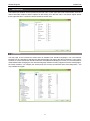
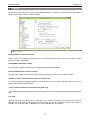
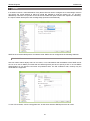
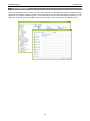
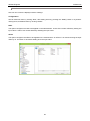
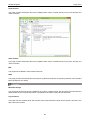
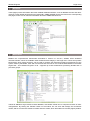
Here we can select the items we want to display on the OSD panel. Double-clicking or selecting an item will
display the settings window for the item, where we can customize its layout. Here we can modify the default
label (or restore it), select the font and configure the font size, font color and font property for the displayed
text.
2.10.4 DESKTOP GADGETS
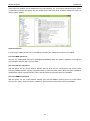
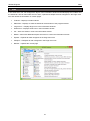
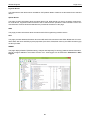
Here we can choose to display sensor values on a Desktop gadget. Desktop gadgets are natively supported
in Windows Vista, Windows Server 2008 and Windows 7, while an extension pack needs to be installed in
Windows XP and Windows 8 to enable them (“Vista 5744 Sidebar for XP” and „8GadgetPack - Gadgets for
Windows 8”, respectively).
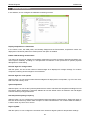
When the option “Use HKLM in Registry” is enabled, AIDA64 stores
measured temperature, voltage and fan speed values in the root key
HKEY_LOCAL_MACHINE in the Registry. Otherwise, the values are stored
in the root key HKEY_CURRENT_USER.
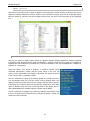
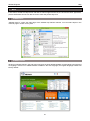
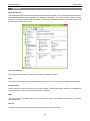
We can customize the layout of the desktop gadget by clicking the wrench
icon that appears when we hover the mouse over the gadget itself. It will
display the options window where we can configure how we want to align the
text and we can choose to break up long texts into multiple lines. If the latter
option is disabled, long lines may not be fully visible in the gadget. We can
also enable/disable the “AIDA64 Engineer” header and the labels.
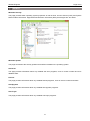
We can customize the gadget colors either by selecting a predefined color
theme or by defining the background top, background bottom, header text
and border colors manually.
27