1
HIMS Inc.
Blaze EZ – User Manual
8) Online DAISY: Pressing "Select" on this item executes the Online DAISY program
which lets qualified patrons connect to and download content from the Canadian
National Institute for the Blind library.
9) Web Radio: Press "Select" on this program to listen to web radio stations from
around the world.
10) Podcasts: Press "Select" on this program to download and play podcasts you are
subscribed to.
11) Utilities: Press "Select" to access the Utilities menu, which gives you access to
utilities related to disk scanning, upgrading the unit and CD-ROM playback.
3.2 Adjusting Volume and other properties.
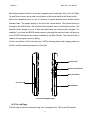
You can use the Voice Control button and the Volume dial on the right side of Blaze EZ to
adjust the volume of media playback, the guide voice, and the reading voice. You can
also use it to change various other settings, such as speed, and media preamp.
To adjust a setting, press the Voice Control button just below the Volume dial repeatedly
until you reach your desired setting. Then, use the Volume dial to increase or decrease
the value of that setting.
•
Note: the default setting is always the master volume, and the volume dial returns to
controlling that value after a few seconds of inactivity. Pressing any other key on the
unit also returns the Volume dial to controlling the main volume.
The available settings differ depending on your location in Blaze EZ. The following
settings are available in their respective locations on Blaze EZ.
1) From the Home Menu: Guide Voice Volume, Guide Voice Speed and Guide Voice
Pitch.
2) From the Media Player: Media Volume, Media Preamp, Media Playback Speed and
Media Equalizer.
3) During DAISY text playback: Reading Voice Volume, Reading Voice Speed, and
Reading Voice Pitch.
4) During DAISY Audio Playback: DAISY Audio Volume, DAISY Audio Preamp, and
DAISY Audio Speed.
14