1
Configuring for Flow Sensor Input
C.2. Configuring for Flow Sensor Input
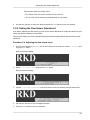
In the previous section you enabled the RKD to accept flow sensor input - now you need to configure what
to do with it and this section walks you through the relevant procedures.
C.2.1. Selecting Sensor Type
By telling the RKD which type of sensor you are using, the controller can calibrate the input it receives from
the input terminals. The RKD knows the calibration profiles for five different sensor types - if you're not using
one of these you'll have to skip to the next procedure to perform a manual calibration for your sensor.
Using a known sensor type to enable a built-in profile:
Procedure C.2. Using a built-in calibration profile
1.
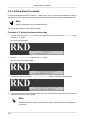
Turn the mode selector to ADVANCED, use the item selectors to scroll to item number 3. FloGuard, and
push the ENTER button.
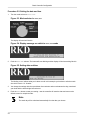
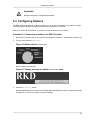
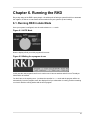
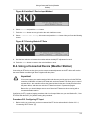
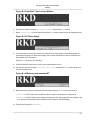
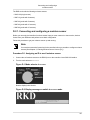
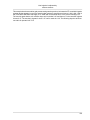
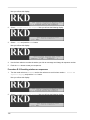
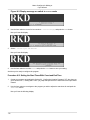
Now you'll see this display:
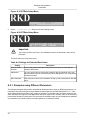
2.
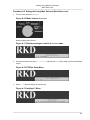
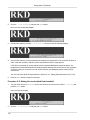
Select 4. Flow Sensor Setup, and push the ENTER button.
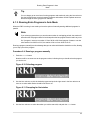
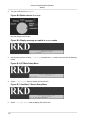
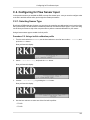
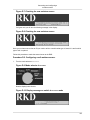
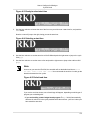
Now you'll see this display:
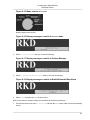
3.
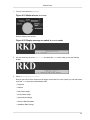
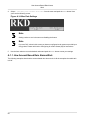
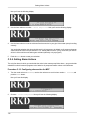
Choose 1. Flow Sensor Type by pushing the ENTER button.
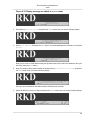
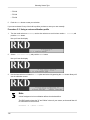
Now you'll see this display:
4.
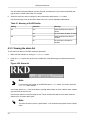
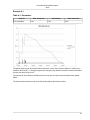
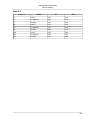
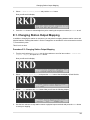
Use the item selectors to select one of the five built-in profiles:
• FS-100
• FS-150
125