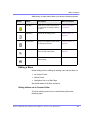
1
Menu and Menu
NOTE:
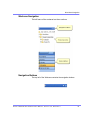
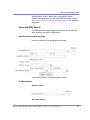
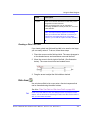
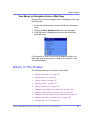
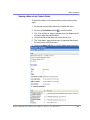
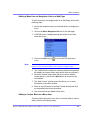
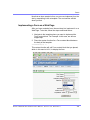
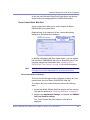
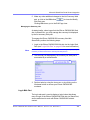
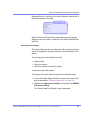
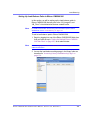
One is able to add a sub-menu via Navigation link on a Web Page. (See “”Viewing
a Menu via Navigation Link on a Web Page” on page 301”.) Once there, hover the
mouse over to the sub-menu and click on the Add button to add the content block.
Editing a Menu Item
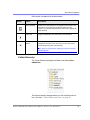
Just like one is able to edit a menu, one is also able to edit a menu
item. However, one is able to edit a menu item via:
• Its content folder
• Menus folder
• Navigation link on a Web Page
The following section will talk about how to edit a menu item in
more details.
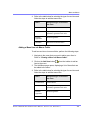
Editing a Menu Item via its Content Folder
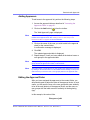
To edit a menu item from its content folder, perform the following
steps:
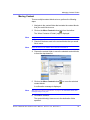
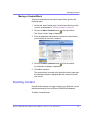
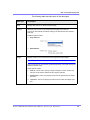
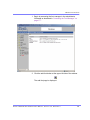
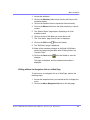
1. Access the content folder where you created the menu.
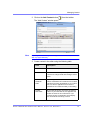
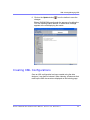
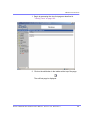
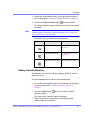
2. Click on the View Menu button(
) from the toolbar.
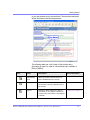
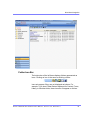
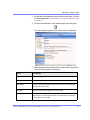
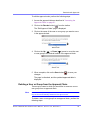
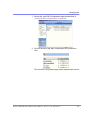
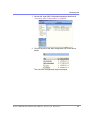
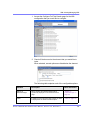
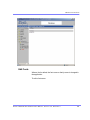
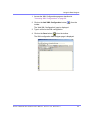
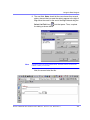
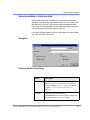
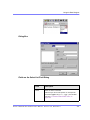
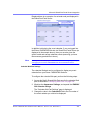
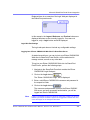
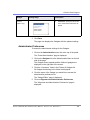
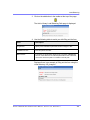
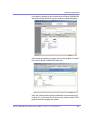
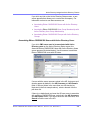
3. The “View All Menus” page is opened which will displays a list
of menus under that content folder.
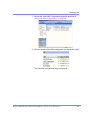
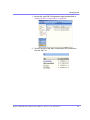
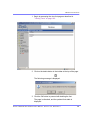
4. Click on the title of the Menu you would like to view.
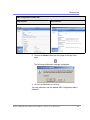
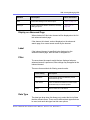
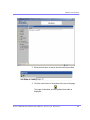
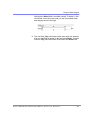
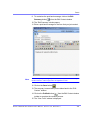
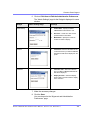
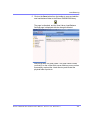
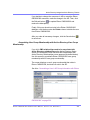
5. The “View Menu” page for that menu is displayed that lists all
the menu items under that menu.
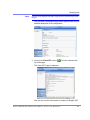
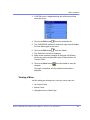
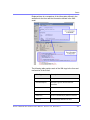
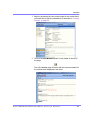
6. Click on the More Info link to view the details about the menu
item.
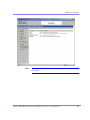
7. Click on the title of the Menu item you would like to edit.
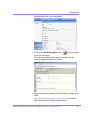
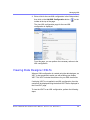
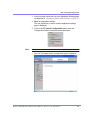
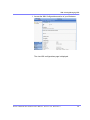
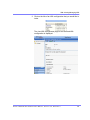
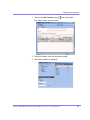
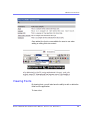
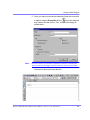
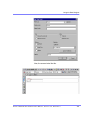
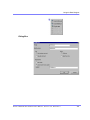
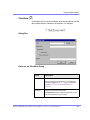
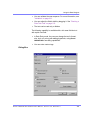
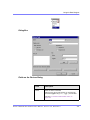
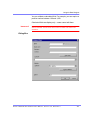
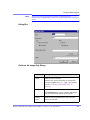
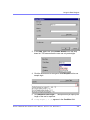
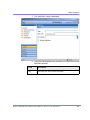
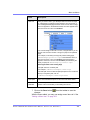
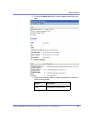
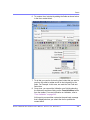
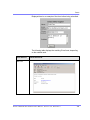
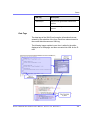
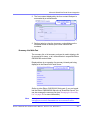
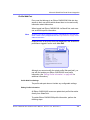
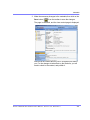
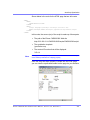
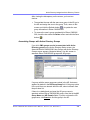
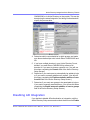
8. The “Edit Menu Item” page is displayed.
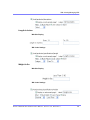
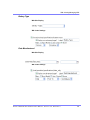
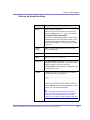
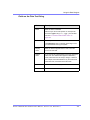
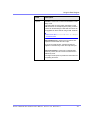
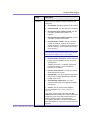
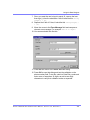
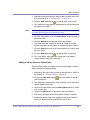
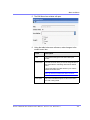
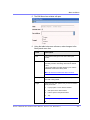
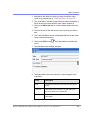
9. Make all the necessary changes to the fields in Edit Menu
window.
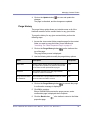
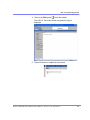
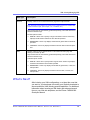
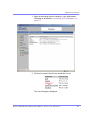
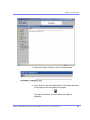
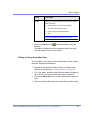
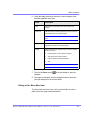
10. Click on the Save button(
changes.
) from the toolbar to save the
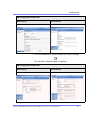
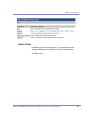
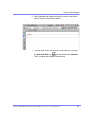
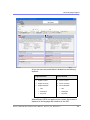
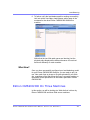
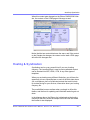
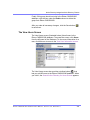
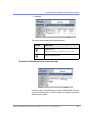
The page is refreshed, and the updated menus table is
displayed.
Ektr on CM S2 00/30 0 Ad mi nistr ator Manual , Versi on 4. 5, R evision 4
310