1
Us ing C on figure Pan els
78
Chapter 5
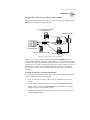
NOTE: When working with the Composite/YC input card, be
aware that the input
must be switched
between the Composite input and the YC
input in the Configure
panel labeled Input
Settingss. Both signals can be hooked up
concurrently, but only
one input and pass
thru can be used at a
time.
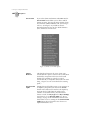
Composite And
Y/C Input Card
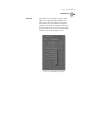
To create a custom profile, start by typing in a new name for the profile in the field
under the Reset/Load/Save buttons.
We’ve designed the built-in profiles to be non-modifiable so you always have a
basic set of values to work with. If you try to save over the built-in profiles without
changing the name, they won’t save, and your new settings will be lost.
Adjust the settings as needed, and click Save. The profile is now listed on the popup menu when you click Load. It is also listed in the pop-up menu on the Input
Settings panel.
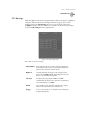
The following sections explain how to use the Advanced Input Settings panels for
the different input cards.
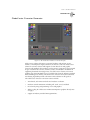
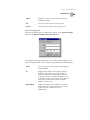
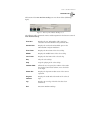
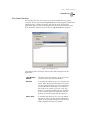
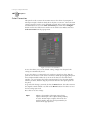
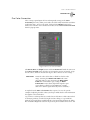
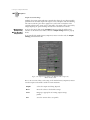
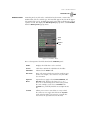
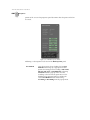
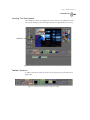
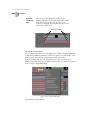
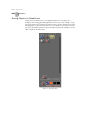
The Composite/YC card can process either composite or YC (S-video) signals. If
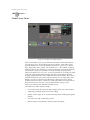
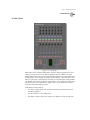
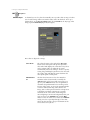
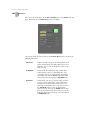
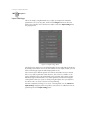
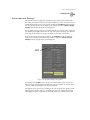
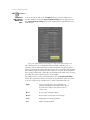
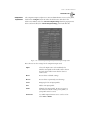
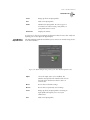
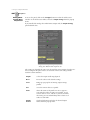
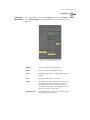
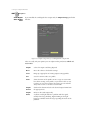
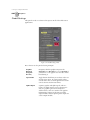
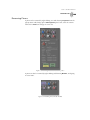
this card is installed, the Advanced Input Settings panel looks like this:
Figure 5.17: Advanced Input Settings Panel for the Composite/YC Input Card
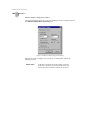
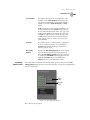
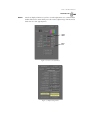
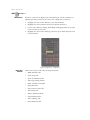
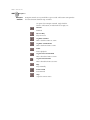
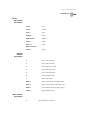
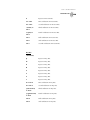
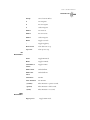
Here’s how to use the settings for the Composite/YC (S-video) card:
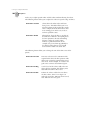
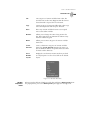
Input
Selects the input source to be modified. The
number corresponds to the number of the slot on
the back of the GlobeCaster that the device is
connected to.
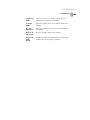
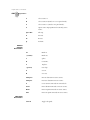
Reset
Resets values to default settings.
Revert
Resets values to previously saved settings.
Load
Brings up the list of input profiles.