1
Screen Contrast Adjustment
Description
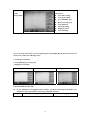
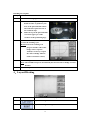
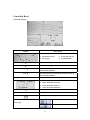
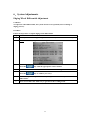
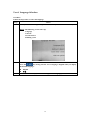
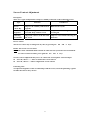
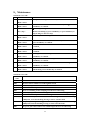
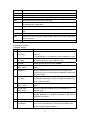
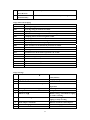
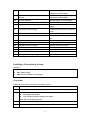
There are 3 types of adjustment to improve visibility of the lens on the scanform™ screen.
Type
Function
Possible Use
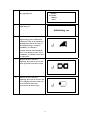
Inverse
Colour Key
Improve the visibility of the bifocal
segment
Bifocal Lens Layout
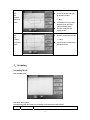
Screen
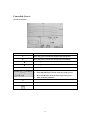
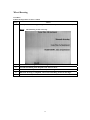
Brightness
Adjust the brightness of the
recorded shape with the screen
Adapts to the ambient light in the
working lab
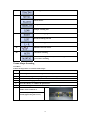
Polarizing
View Finder
Adjust the contrast of the lens with
the screen
Improves view when decentering of a
dark lens
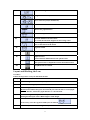
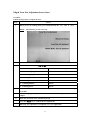
Inverse Colour
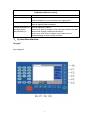
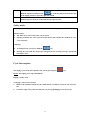
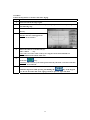
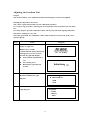
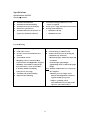
The inverse colour may be changed at any time, by pressing the
FN
and
9
keys.
Result: The screen reverses colour.
Notes: The colour will default back to black on white after the system has been switched off.
To return to black on white, press again the FN and 9 keys.
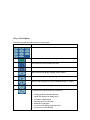
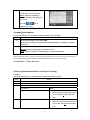
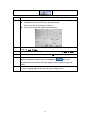
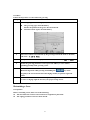
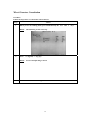
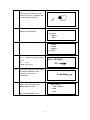
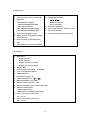
Screen Contrast Adjustment Keys: FN + 0. Choose the second option: Contrast adjust
z Press F2, choose “–” : Allow to darken the screen contrast
z Press F1, choose“+”: Allow to lighten the screen contrast
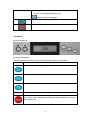
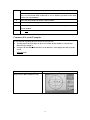
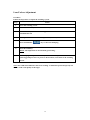
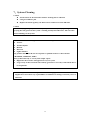
Polarizing Visor
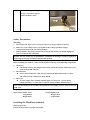
To adjust the brightness of the recorded shape with the screen, rotate the polarizing eyepiece
in either direction to suit you best.
31